Templates
Templates in Connxio allow you to save integration configurations as reusable blueprints. This enables you to create new integrations quickly based on proven configurations, ensuring consistency across your integrations and saving time when you need to set up similar integrations across different projects.
Connxio also supports global templates that can be shared across all companies, making it easy to distribute best practices and standardized configurations. These templates are managed by the Connxio developers and are available to all users.
Creating a Template
Templates are created from existing integrations. To create a template:
- Navigate to an existing integration you want to use as a template
- Click the Save as template button in the integration toolbar
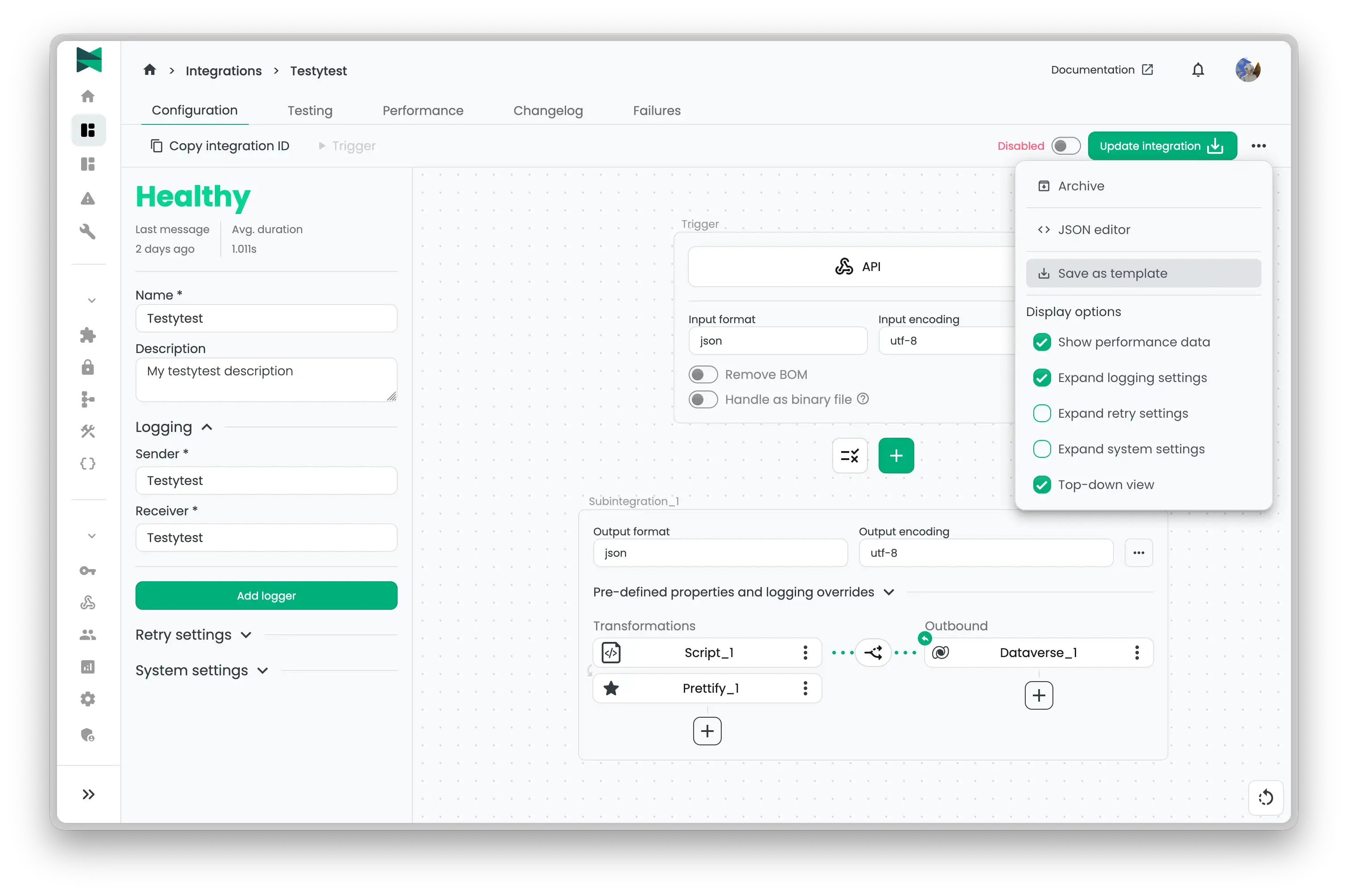
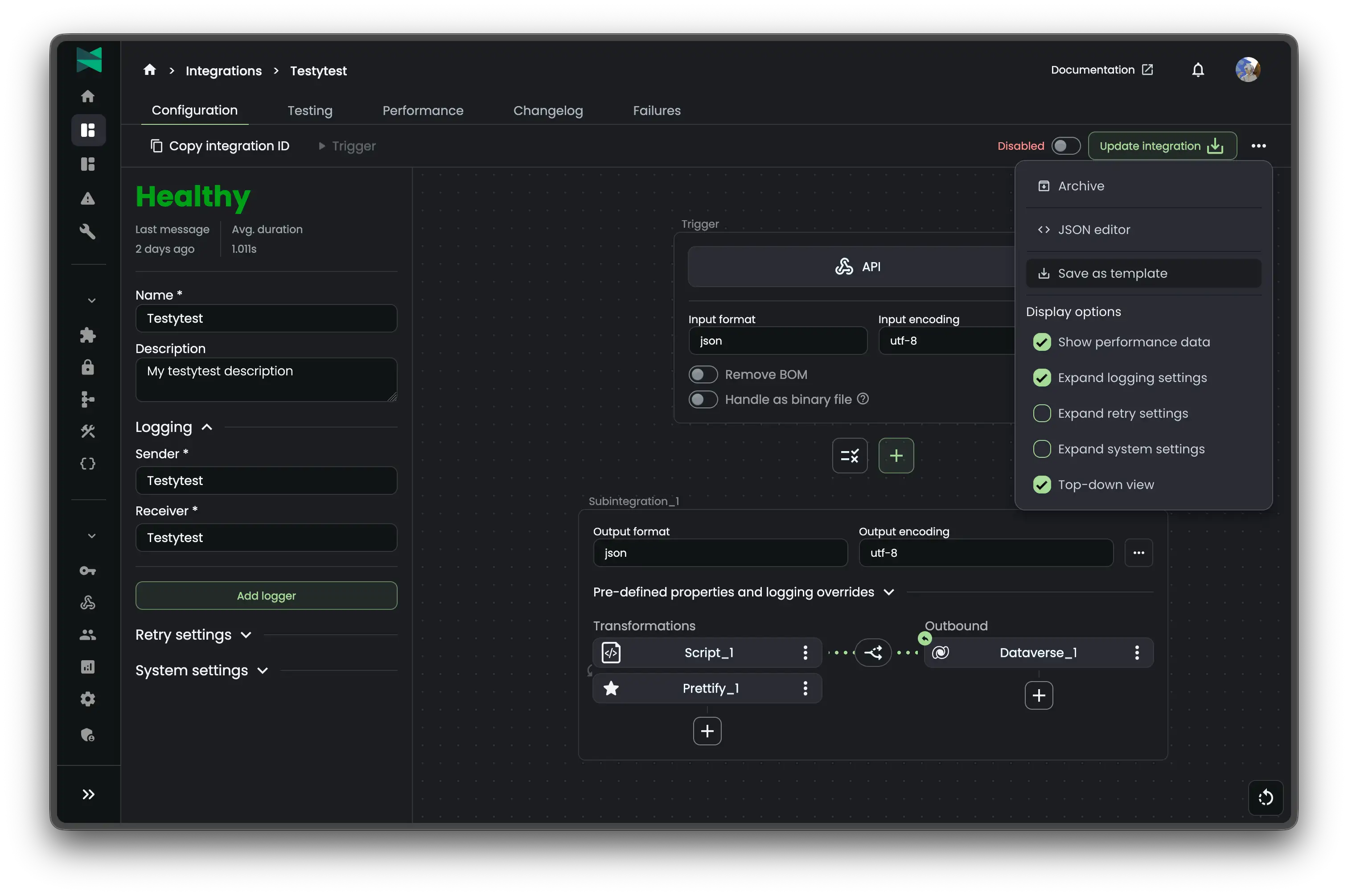
- In the dialog that appears, enter a Name and Description for your template
- Click Create to save the template
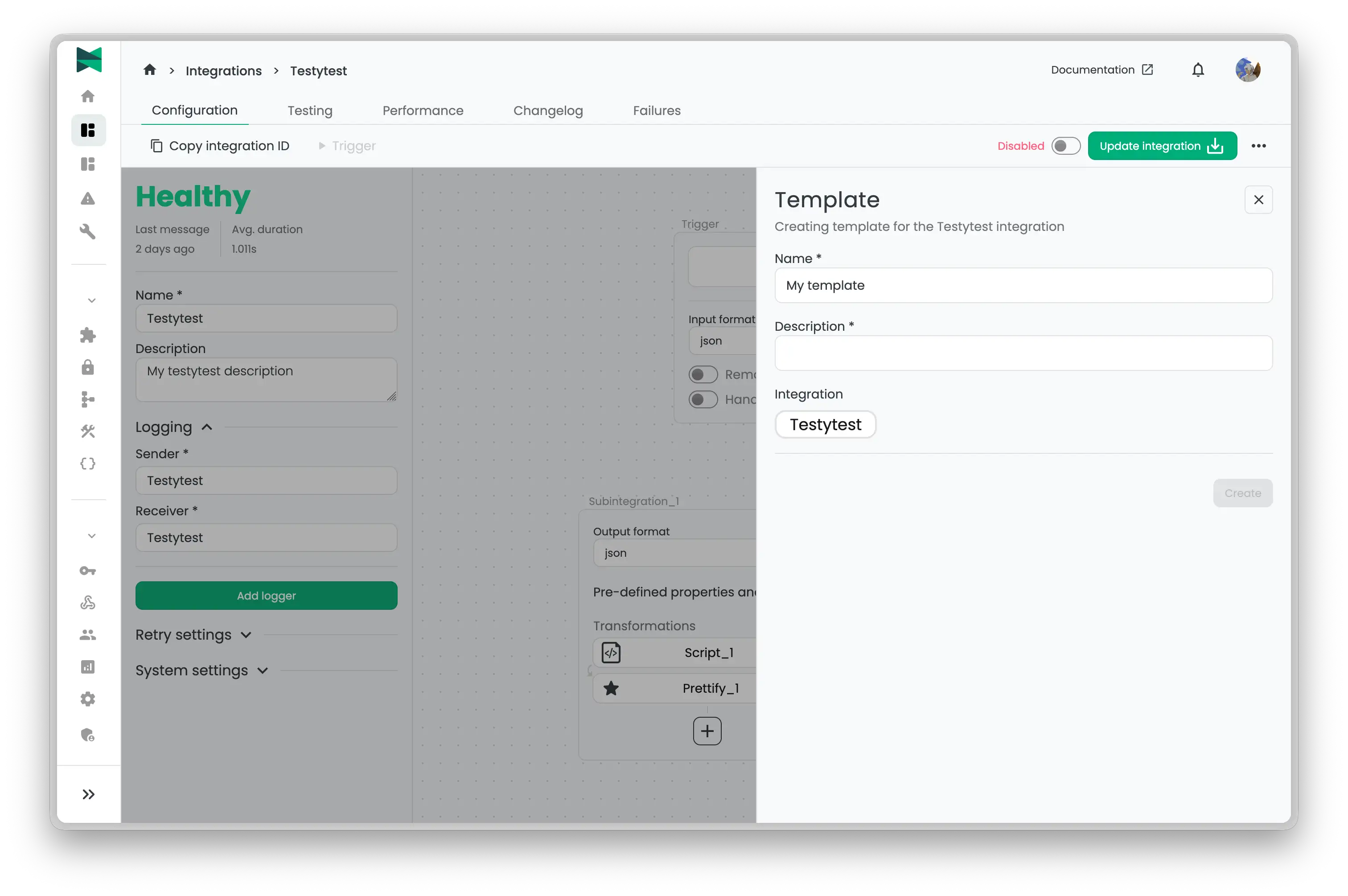
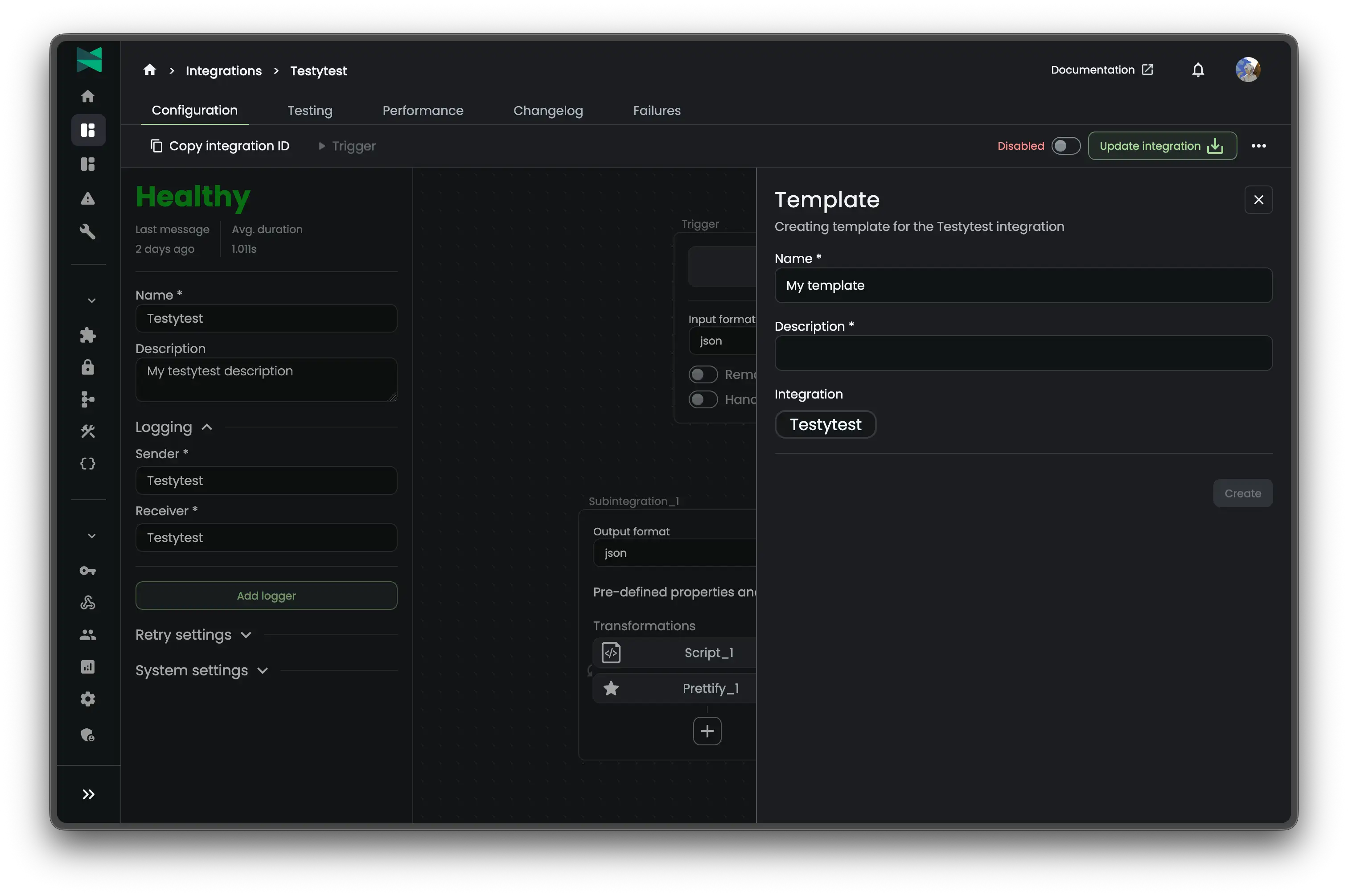
The template will now appear in your templates list and can be used to create new integrations.
Using a Template
There are two ways to create a new integration from a template:
From the Integration List
- Navigate to the Integrations list
- Click the Add Integration button
- Select From template option
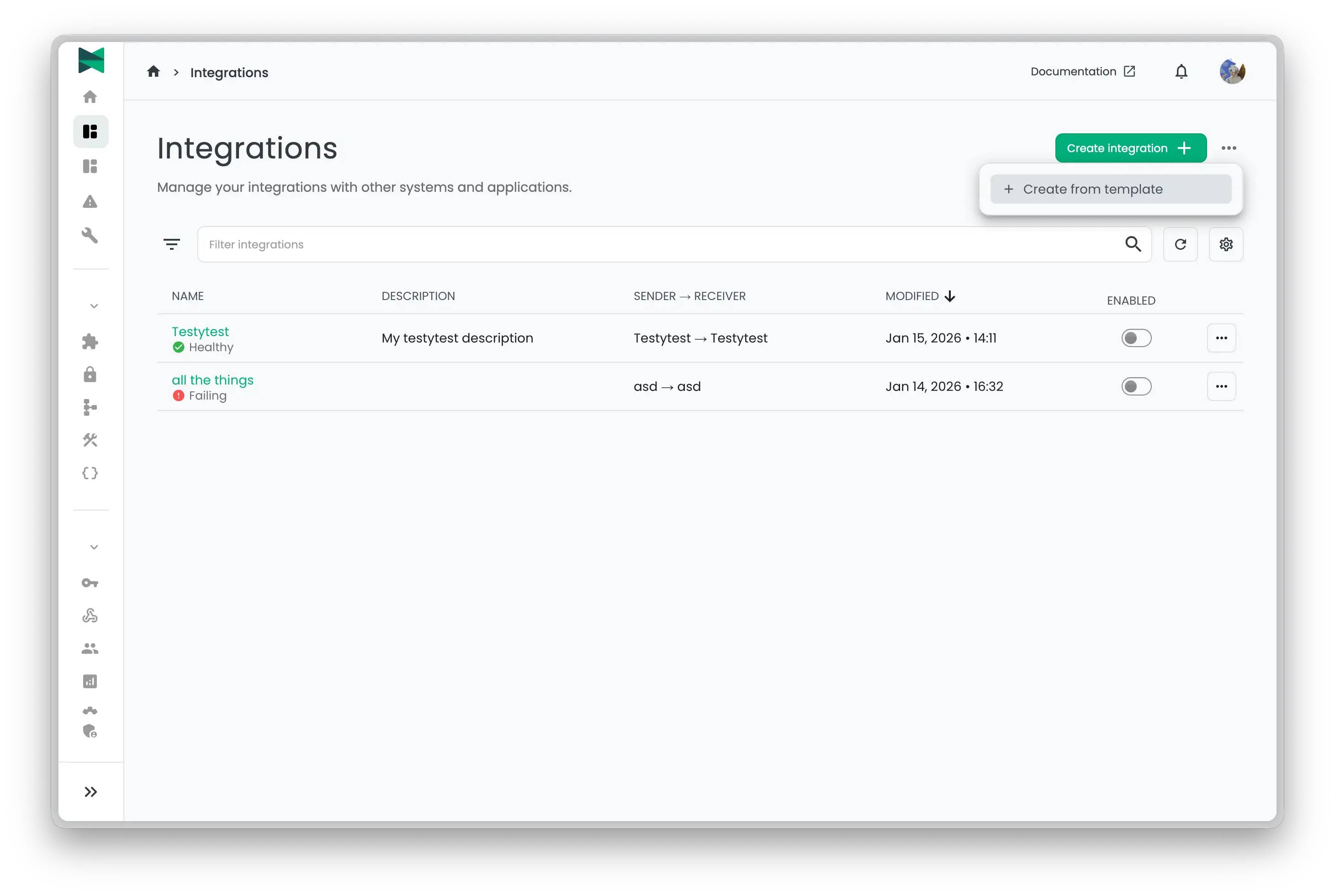
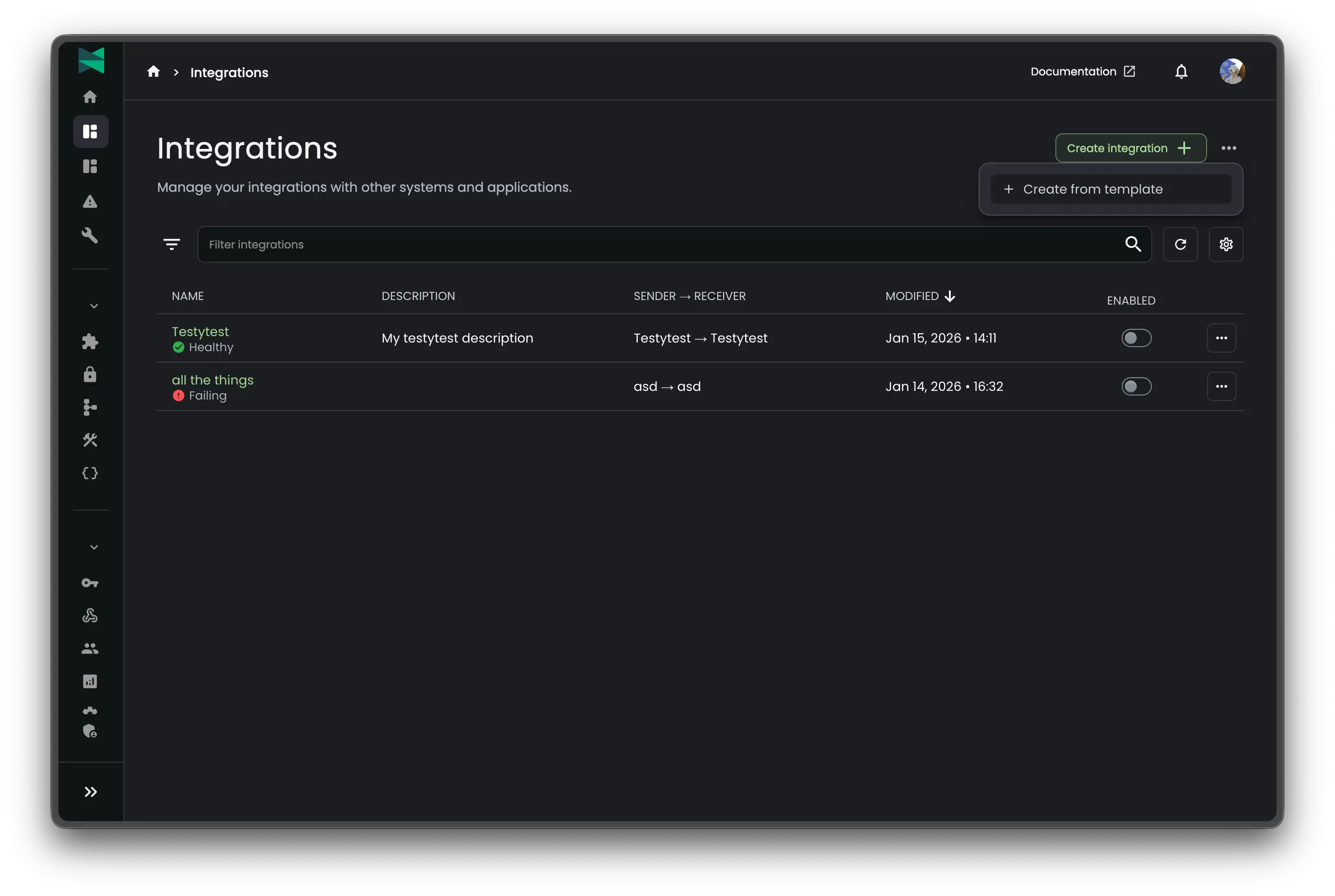
The new integration will be created with all the settings from the template, and you'll be redirected to the integration details page where you can make any necessary adjustments.
From the Templates List
- Navigate to the Templates list
- Find the template you want to use
- Click the Use template button
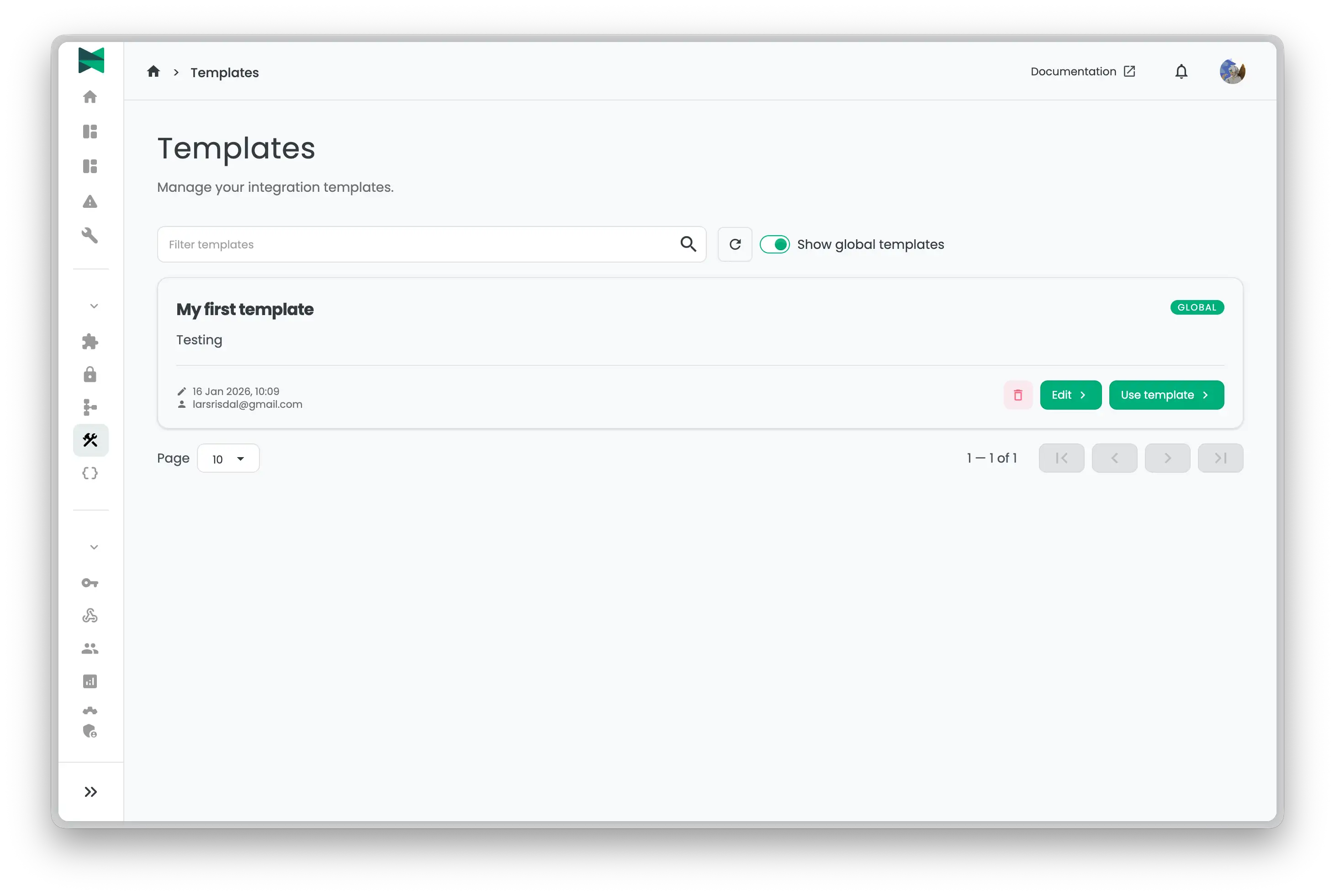
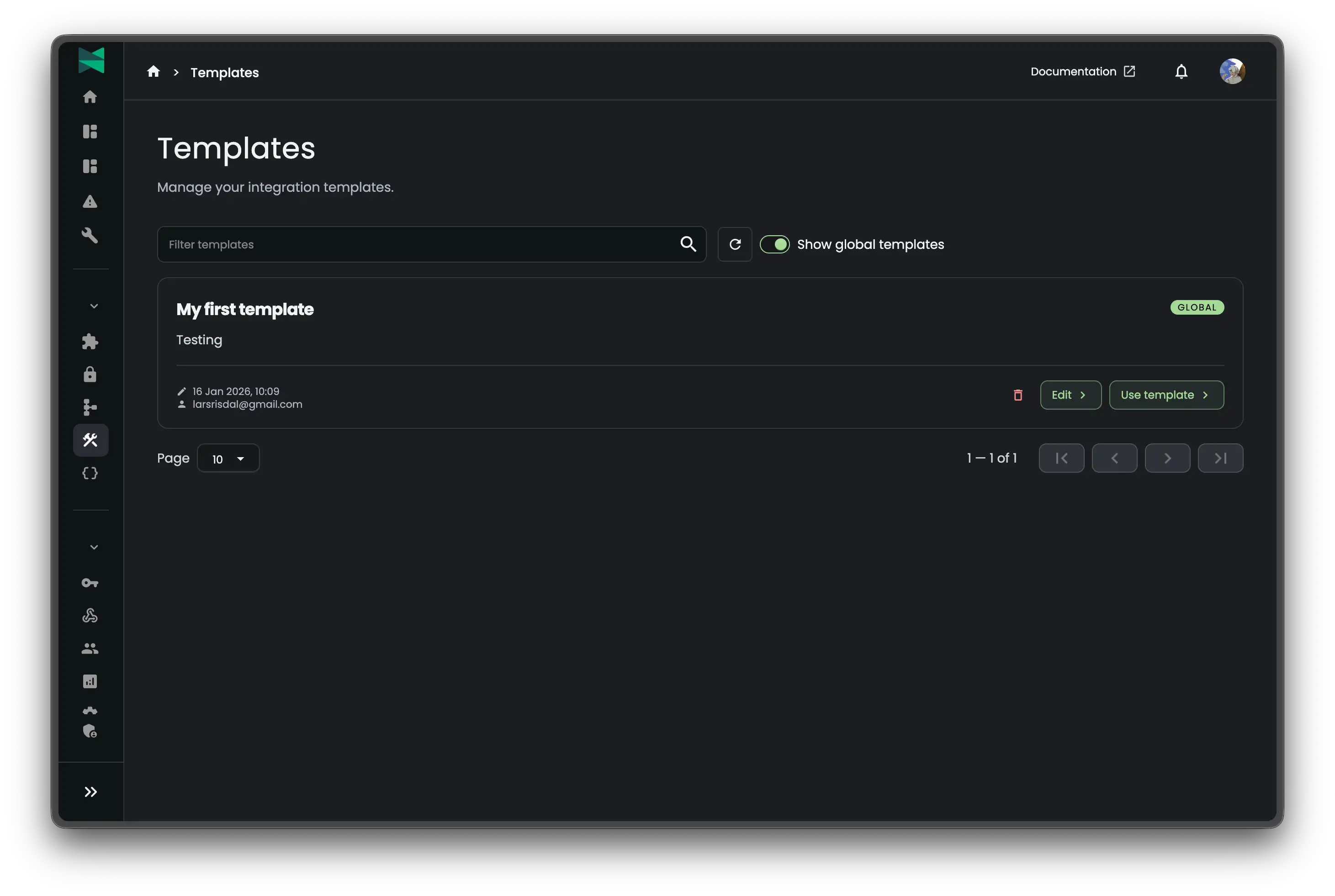
- Preview the template details and fill in the required fields for the new integration.
- Click Create integration
Editing Templates
To modify an existing template:
- Navigate to the Templates list
- Find the template you want to edit
- Click the Edit button
- You'll be taken to the template editor, which works just like the integration configuration page
- Make your desired changes to the template configuration
- Click Save template to save your changes