Batching
Batching groups multiple messages into one output message.
Messages are queued in a bucket for a configured interval, processed by a batching code component, and then sent through the pipeline as a single message.
Limitations
Current limits:
- A single batch can include up to
1000input messages - Connxio supports messages below
100 MB
If more than 1000 messages are queued when the interval fires, Connxio splits them into multiple batches.
Example:
If 2300 messages are in the bucket, Connxio creates three output files: 1000, 1000, and 300 messages.
These limits prevent oversized files and protect both internal and external systems from resource spikes. For plans around files above 100 MB, contact your representative.
Configuring Batching
To configure batching, select Batching in the "Transformations" list.
When you create a new transformation, a popup appears with the batching input fields.
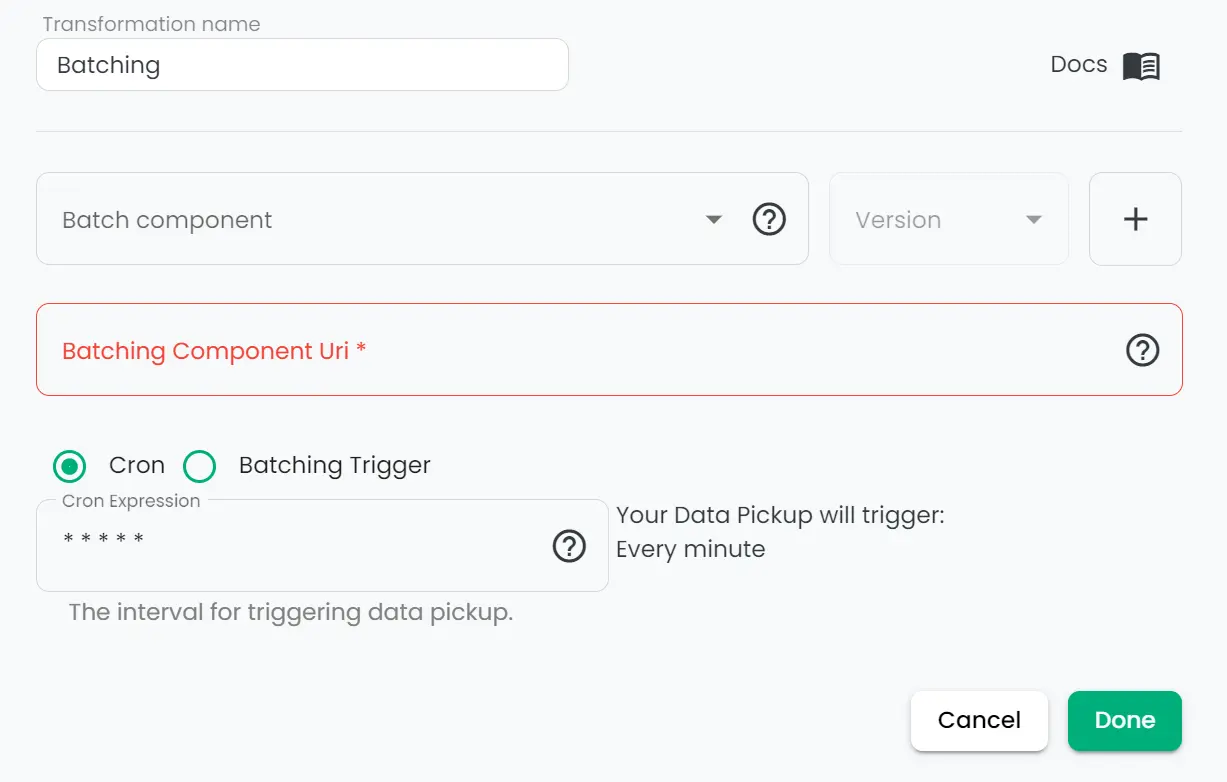
See the sections below for how batching code, scheduling, and retries work.
Creating batching code components
NuGet package
Install the Connxio.Transformation package in your C# project:
dotnet add package Connxio.Transformation --version 0.2.2
Or add to the .csproj file directly:
<PackageReference Include="Connxio.Transformation" Version="0.2.2" />
If you still use Communicate.ConnXio.Transformation, migrate to Connxio.Transformation.
Start by creating code that combines queued messages into one output payload. This is similar to map code components, but uses the batching interface.
Use the batching boilerplate below:
using Newtonsoft.Json;
using Connxio.NuGet.Public.Transformation.Interfaces;
using Connxio.NuGet.Public.Transformation.Models;

public class MyFirstBatcher : IConnxioBatch
{
    public TransformationContext Batch(IEnumerable<TransformationContext> transformationContexts)
    {
        var msgIns = new List<dynamic>();

        foreach (var transformationContext in transformationContexts)
        {
            msgIns.Add(JsonConvert.DeserializeObject<dynamic>(transformationContext.Content));
        }

        //Create new outbound message
        var message = new
        {
            Type = msgIns[0].Type,
            Values = new List<dynamic>()
        };

        foreach (var msg in msgIns)
        {
            message.Values.Add(msg.Value);
        }

        // Create new transformation context and set content and metadata
        var outTransformationContext = new TransformationContext
        {
            Content = JsonConvert.SerializeObject(message),
            MetaData = transformationContexts.First().MetaData.Copy()
        };

        //Return batched message
        return outTransformationContext;
    }
}
Upload the component using the process on the code components page, and select the batching type.
Trigger Interval
The trigger interval controls when batching runs.
You can configure it with either a Cron expression or a Batching Trigger Interval.
Batching Trigger Interval
Set a fixed interval in minutes (minimum: 1), or run once daily at a specific time (hh:mm).
Cron
Use Cron for advanced schedules. Read more here.
Retry
Retry behavior depends on where failure occurs:
- If a transient error happens before the batching code runs, messages are returned to the queue and retried after 60 seconds.
- If failure happens after batching code runs, Connxio retries send attempts with increasing delay, then schedules the message through the disaster pipeline.
Retries can produce smaller output files than expected. Check your logging provider for warnings; if none appear, contact your representative.